Social content studio
Prepare and refine social content drafts in your practice voice. The studio does not automatically post to your social accounts.

Product directory
Explore the practice tools planned for launch. Availability varies by plan.
Try “book appointments,” “write notes,” or “track payments.”
01 / Set up
Work through the decisions behind your practice, then review the setup drafted from your answers.
Work through your license, clients, services, fees, paperwork, schedule, website, and payment setup. Save your progress and review the result.
Explore your niche, ideal client, and brand voice from your background and preferences. Refine the suggestions to suit your practice.
Organize your services, session lengths, fees, and client-specific arrangements in your practice setup.
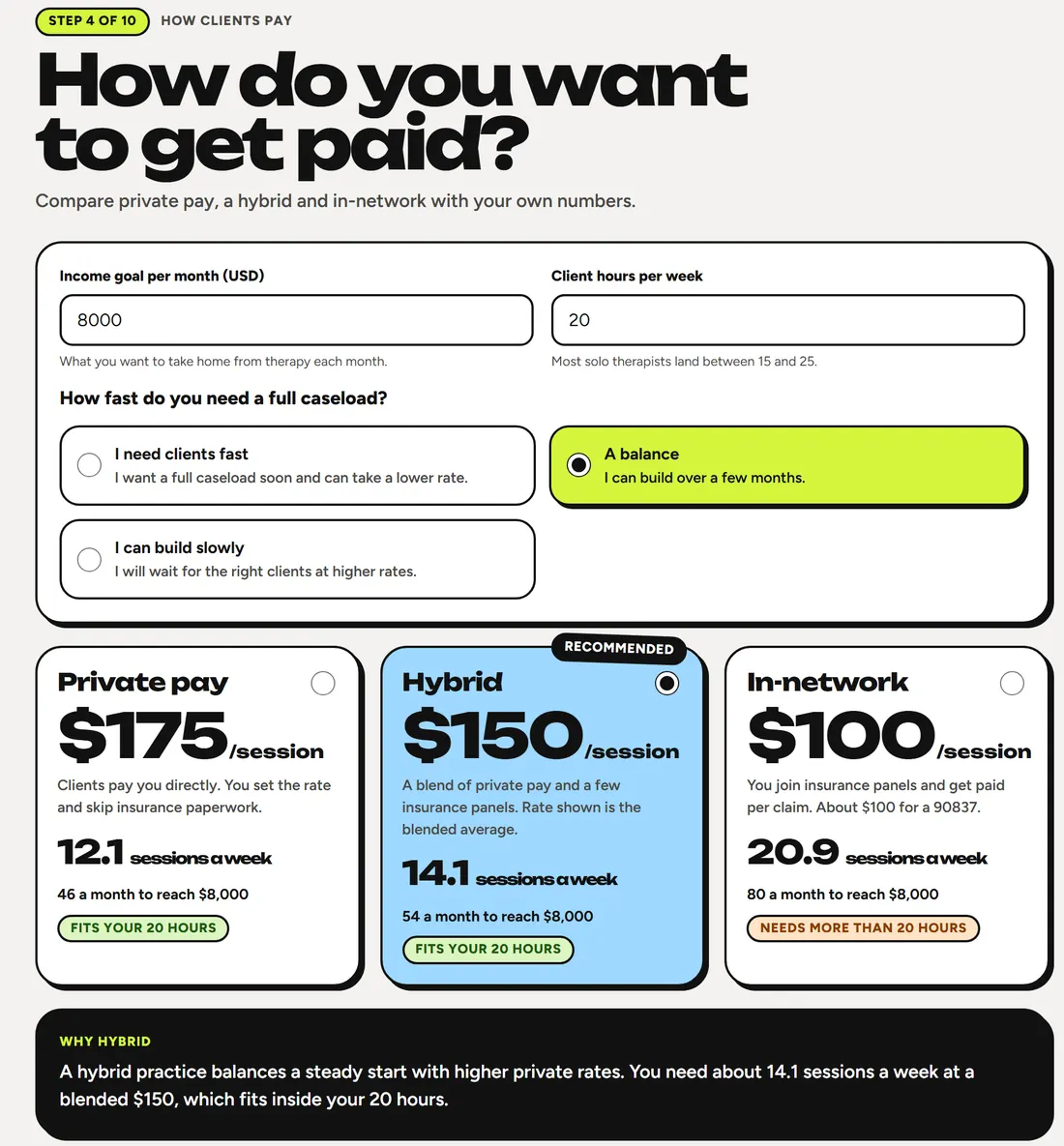
Compare private-pay, hybrid, and in-network scenarios using your own income goal and working hours. Estimates are planning aids, not income guarantees.
Keep track of formation, EIN, NPI, and banking steps with links to official resources. SyncedUp does not file or submit applications for you.
Review the remaining setup items before you begin using your practice workspace, paperwork, booking page, and website.
02 / Daily work
Bring appointments, availability, client context, and next steps into a connected daily workspace.
View your schedule, book sessions, reschedule appointments, and record attendance, cancellations, or no-shows.
Create a repeating appointment series and organize group attendees. Review each attendee’s fee and attendance within the group workflow.
Give prospective clients a way to request an available consultation from your practice site, within your booking rules.
Set working hours, session buffers, advance notice, booking windows, caseload limits, and days away.
Use appointment reminder emails with neutral scheduling information. Delivery depends on the practice’s enabled reminder and email configuration.
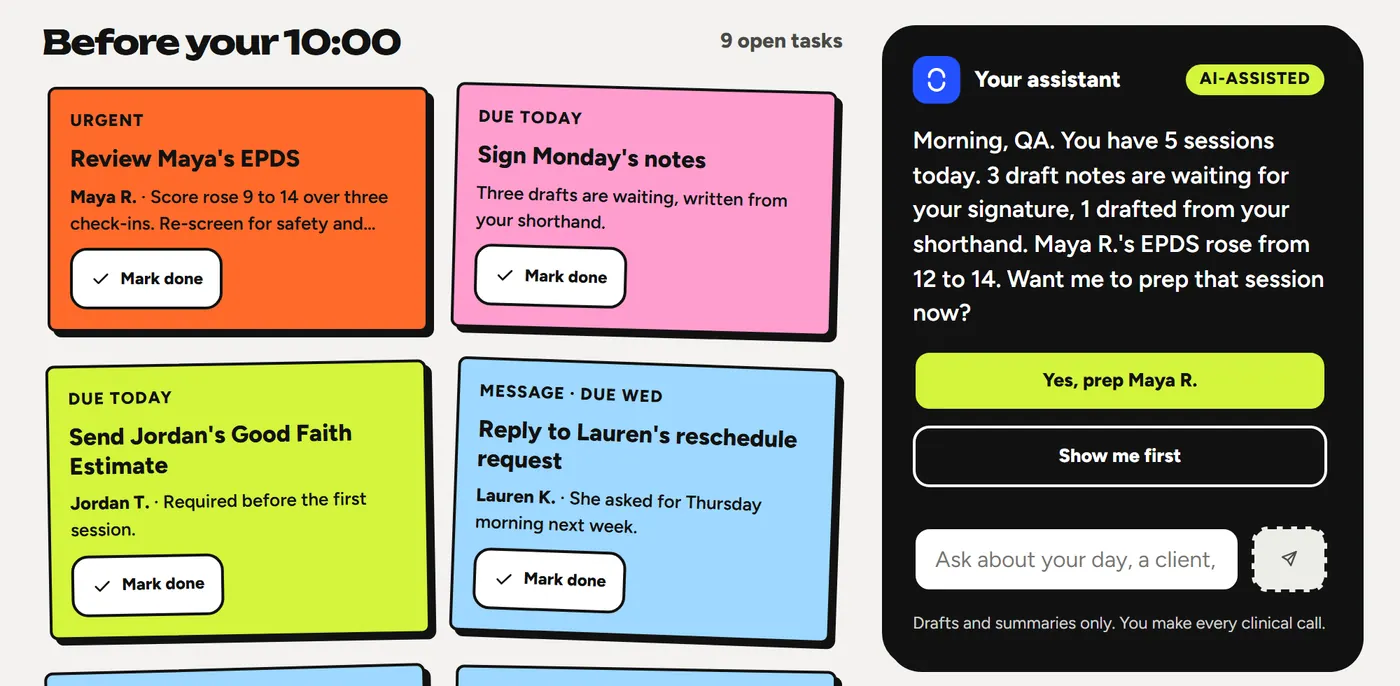
See who is next, appointment context, and work needing attention in the Today workspace. Open tasks sit alongside your sessions.
Keep outstanding notes, intake items, client follow-ups, and recurring practice work visible in your daily task list.
Review a summary of your practice day and ask for help preparing. The assistant supports the clinician with drafts and summaries.
Where configured, connect Google Calendar to account for busy time when finding availability. This is not a promise of full two-way event synchronization.
03 / Client care
Keep client information, documentation, conversations, and progress together. Clinical decisions remain yours.
Search and filter your client roster, then review contact details, appointments, notes, documents, measures, and billing context from the client’s chart.
Upload CSV or Excel client lists, review suggested column matches, and import validated client details. Match original PDFs and images to charts individually or in bulk, including supported files inside ZIPs. Review exclusions and duplicates before saving. File limits apply; appointments and financial transactions are not imported.
Prepare client intake packets, collect answers and signatures, and see what is still incomplete before a session.
Give clients access to the relevant intake, consent, document, message, and payment workflows through their portal.
Keep practice conversations connected to client records. Notification emails do not include the message’s clinical content.
Write session notes using DAP, SOAP, or BIRP formats, and organize intake, consultation, and discharge documentation.
Prepare a draft from typed shorthand when the required consent and AI-provider setup are in place, then review and edit it. A draft is not a signed note or a substitute for clinical judgment.
Sign and lock notes after review. Record later corrections or additions as addenda while preserving the signed original.
Document the plan of care, organize goals, and review plan versions alongside the client record.
Keep private psychotherapy notes in their separate workflow, distinct from the general clinical record.
Track supported PHQ-9, GAD-7, EPDS, PCL-5, and PC-PTSD-5 scores over time, with labeled cutoffs for review. Screening scores are not diagnoses.
Use specialty content and worksheet templates, customize practice copies, and assign supported worksheets for client completion. Pack access depends on the plan.
Organize client documents and their related records in the chart so paperwork stays connected to the care workflow.

04 / Money
Connect payments and balances to the clients, services, and paperwork behind them.
Keep payment methods on file and manage payments, including partial payments, through the configured payment workflow.
Review a client’s charges, recorded payments, invoices, and remaining balance together.
Prepare a superbill for a client and date range, with service and charge information. Reimbursement depends on the client’s insurer and coverage.
Prepare supported claim paperwork for a client to file with their insurer. This is separate from automated electronic claim submission and does not guarantee reimbursement.
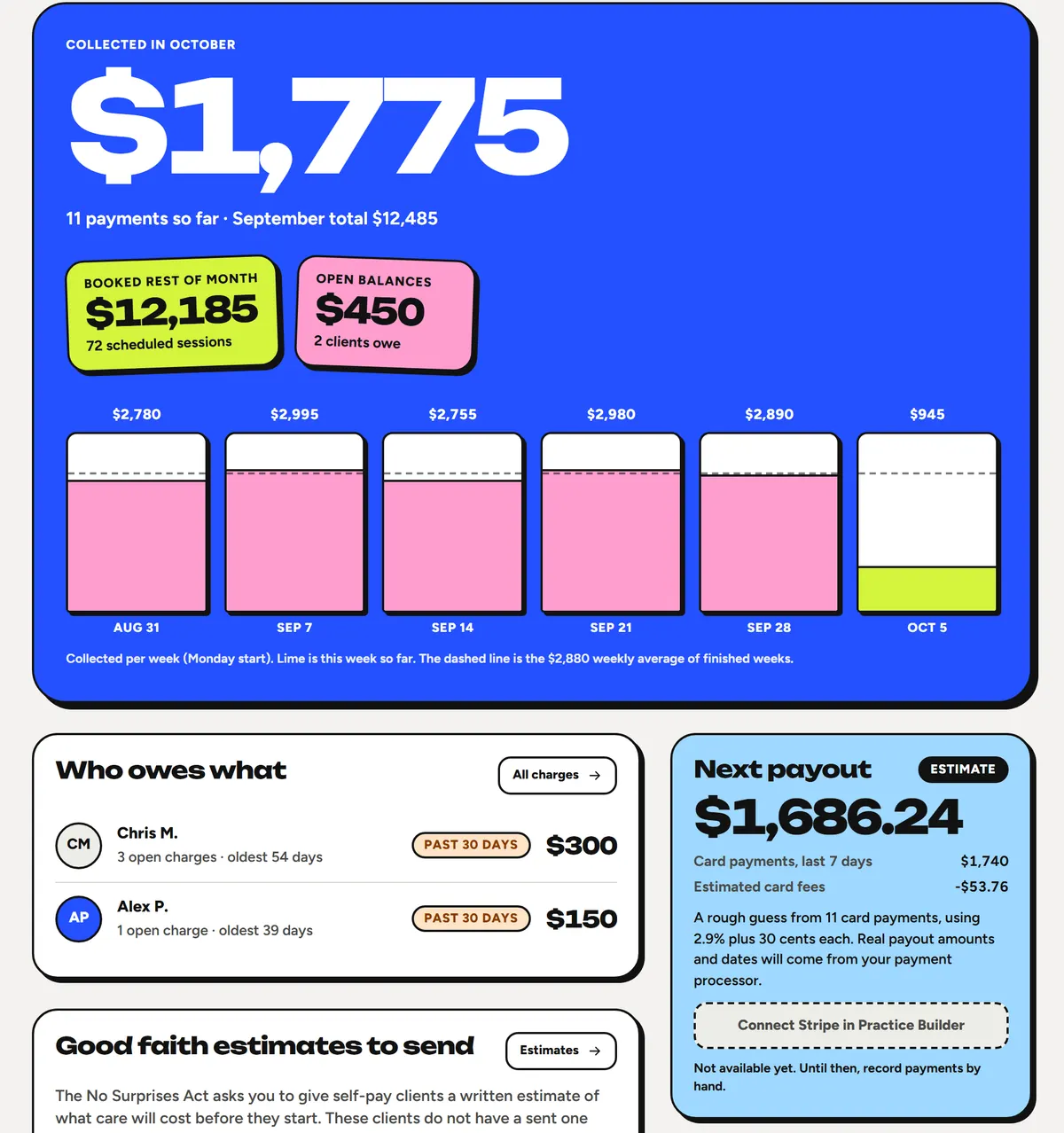
Prepare and track estimates for self-pay clients as part of your practice paperwork. Your practice remains responsible for applicable requirements.
Record practice expenses and keep related receipt information with your money workflow.
Review collected revenue alongside recorded expenses and practice summaries. These views do not replace accounting or tax advice.
Prepare fee-change notices, review recipients and effective dates, and keep your client communication aligned with the change.
Prepare and review communications about changes to the insurance plans your practice accepts. This is separate from automated eligibility or claims processing.
05 / Growth
Bring your website, content ideas, and publishing decisions into one place, with your voice in the final result.
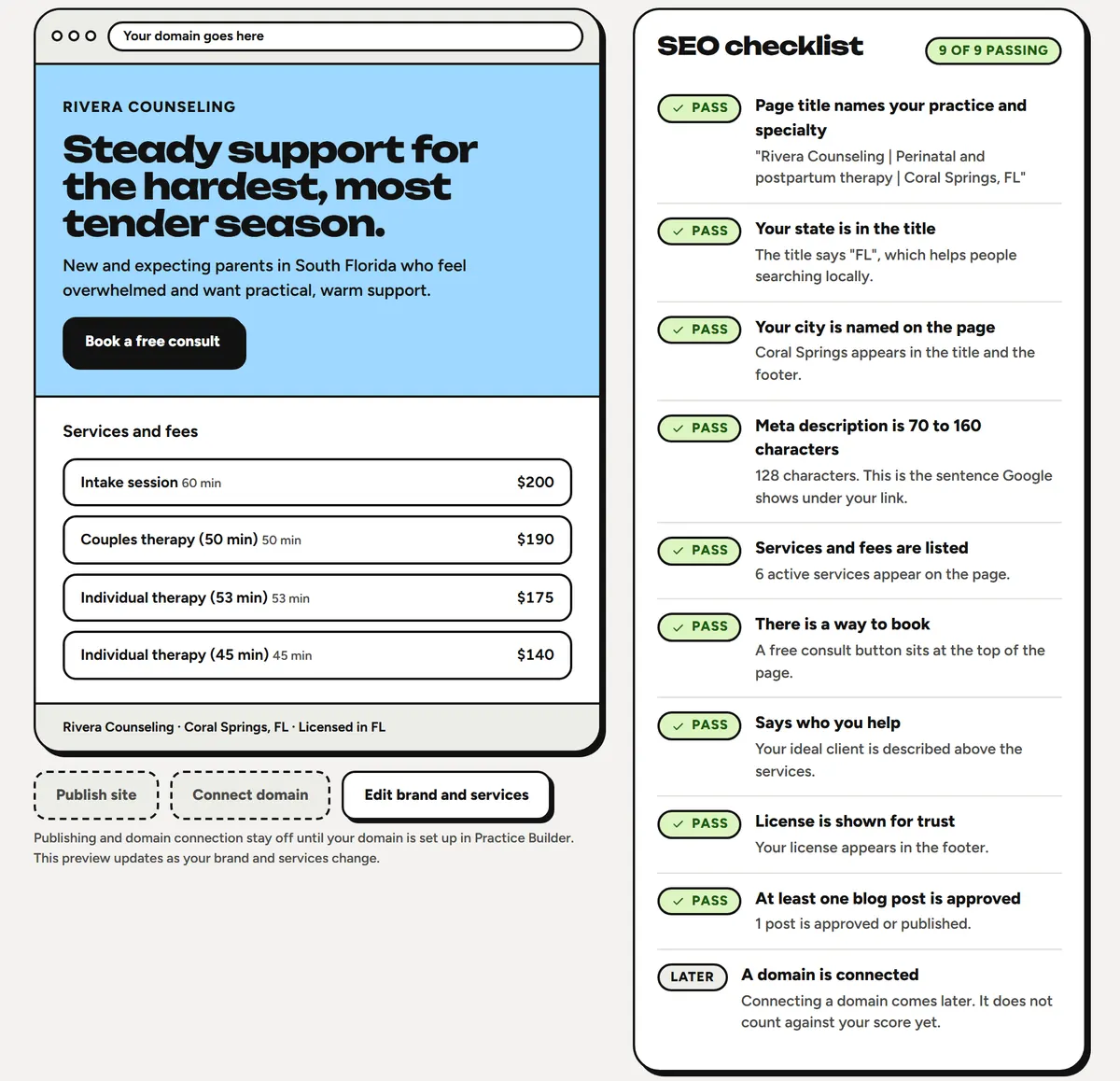
Draft a practice website from your services, fees, and brand details. Review the pages and decide when to publish.
Find practical improvements to your site’s search basics. A checklist does not guarantee search rankings or new client inquiries.
Develop topics and editable draft posts for your practice. Review the content for accuracy, fit, and professional responsibilities.
Prepare and refine social content drafts in your practice voice. The studio does not automatically post to your social accounts.
Organize draft, approved, and scheduled content in a calendar so you can see what is planned.
Upload your own photos and footage, add searchable tags, and attach clips to content items. Never upload client footage.
Use configured image tools to help prepare visual assets for practice content. Review generated material before using it and avoid sharing identifiable client information.
Explore search-interest guidance and manually entered Instagram comparisons when planning content. These are planning aids, not automatically verified performance or growth guarantees.
Manage subscribers with recorded opt-in and prepare newsletter drafts. Sending depends on the configured email service and enabled workflow; delivery is not guaranteed.
06 / Practice tools
Keep the team, recurring work, professional records, and time away organized alongside day-to-day care.
Manage practice members and invitations, switch between your practices, and set owner, clinician, and administrative roles with chart-access assignments.
Give administrative staff a workspace for daily operations. Owners can review clinician session and payment activity within their permissions.
Record referral sources and relationships so you can see how people find your practice.
Keep a record of continuing education entries and supporting details alongside your professional practice tools.
Track recurring practice work and due dates, with relevant reminders surfaced in the daily workspace.
Plan time away, block affected booking dates, and prepare relevant notices for your review.
Organize license records, professional credentials, and insurance-policy details, with renewal dates and related documents.
07 / Privacy & records
Use clear access controls, traceable records, and practice-specific policies. Your professional responsibilities stay with your practice.
Review and sign the SyncedUp business associate agreement as part of the practice setup before keeping client records.
Use an authenticator app and practice security settings, including a two-step sign-in requirement and idle-session limits.
Review recorded chart-access and important record actions, including note signatures and payment activity.
Export supported practice and client records through the authorized export tools. Review the contents and applicable retention requirements before leaving a system.
Record your practice’s retention policy and legal-hold settings. Choose requirements appropriate to your records and jurisdiction.
Organize practice policy versions, vendor agreements, training records, and a risk-assessment checklist. These tools do not certify compliance.
Prepare a professional-will document and organize continuity information for the person responsible if you cannot continue your work.
A clear view of availability
These are the tools being brought together in SyncedUp Therapy. New registrations are paused while we prepare for launch.
Insurance eligibility and automated claims are in development. Clinical video availability will be confirmed separately. Calendar connections and newsletter sending depend on the relevant service being configured.
Review planned pricing & plan detailsBuilt around your practice.
Follow what’s next for SyncedUp Therapy.
Join the waitlistNo account or payment required. Joining does not reserve a plan, price, or place.